Normally it takes a hell lot of time just Shutting down Windows, you have to move your mouse to the Start Button, click on it, move it again over Shut Down, click, then move it over the necessary option and click, then move the cursor over the OK button and once again (you guessed it) click.This whole process can be shortened by creating shortcuts on the Desktop which will shut down Windows at the click of a button.
Showing posts with label Windows 7. Show all posts
Thursday, June 16, 2011
Wednesday, June 15, 2011
Thursday, April 21, 2011
How to Install IIS on Windows 7
IIS is Internet Information Services. If you are a developer using ASP technologies, then IIS is one thing that you need. Windows 7 has this IIS but by default this is disabled. Ensure that you have installed one of the editions of Windows 7 on which IIS 7 is supported. Not all IIS features are supported on all editions of Windows 7, Home Basic and Starter editions include only limited basic features of IIS.
Wednesday, April 20, 2011
What is IIS?
IIS is Internet Information Services, is a set of internet server including Web, HTTP and FTP server with additional capabilities for Microsoft 2000 server OS.With IIS installe on your PC, that can make you PC a web server. With IIS Microsoft enters into the servers market and compete with the likes of Apache, SunMicrosystems, etc.
Tuesday, April 19, 2011
Remove Items/folders from Favorites in Windows 7
In Windows 7, the favorite in the navigation panel is a very useful resource. We can add our more visited folder in the Favorite Section in the navigation panel. We can also remove a entry from the navigation panel in a very simple way, without any software or batch or without editing the registry.
Add any Folder to Favorite in Windows 7
When you open explorer in Windows 7 the first thing you will notice is the Favorite on the left hand side of the explorer window. There are some items already added by Microsoft by default like Desktop, Downloads & Recent Places. You can add items , you favorite folders in the Favorite section .
Monday, March 28, 2011
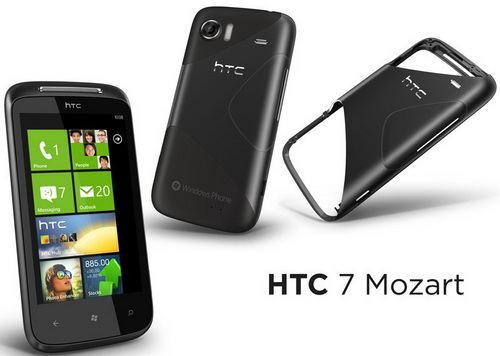
HTC 7 Mozart
From the house of HTC comes the first phone that has the Windows OS 7. This is first of its kind. The Mozart UI is really impressive and touch response is really good. The UI has good user customizable tiles which dynamically update all key information right on the Start screen.
The Price of this phone is approx Rs 25000.
Friday, March 18, 2011
The Dell Venue Pro
The latest thing in the mobile market is the Windows 7 OS for mobile and this has been the big thing to talk about. The Dell Venue Pro is a smart phone supporting a Windows 7 OS. The Dell Venue Pro has a 4.1 in Amoled capacitive touch screen with a QWERTY keypad. Dell Venue Pro has a got a 5MP camera witha n LED flash and also the picture quality is good.
The price of Dell Venue Pro is about Rs 35000.
Tuesday, March 8, 2011
Expanded view of the Start Menu items in Windows 7
By default, the start menu items are in the form of a link. you have to click on that link to open it and see the content of that item. Well you can add an expanded view of the item from which you can directly access the desired application or the item as a Menu just like a quick launch option. You can have the expended view for Control panel, My computer, Games and many more items.
Tuesday, December 28, 2010
Download 30+ Windows 7 Country Specific Theme
Many user love to change the theme of there windows to give a new and refreshing look to the desktop. You can now give a new look to you PC with special Country Specific themes for Windows 7 PC. Tn the beta version of Windows 7 you can find 5 hidden themes, but now you can get upto 30+ Windows 7 country specific themes from Windows official site.
Wednesday, December 22, 2010
Creating keyboard shortcuts for Program in Windows 7
There are some program that you use daily like Tweetdeck, Firefox etc. and a quick way to open the program would be of great help. Well in windows 7 you can assign keyboard shortcut to favorite pogram or the application that you us daily with out installing any new software.
Assigning keyboard shortcuts to applications
Tuesday, December 21, 2010
How to Enable Windows 7 GodMode
A lot of changes have been made in Windows 7 control panel. Many user find it difficult to locate all the options that you might need. Godmode, a term devised the Microsoft Developer team, which provide a single place where you can access all the options in the Control panel.
NOTE: Do not try this on Vista 64 bit
Enabling Windows 7 GodMode
NOTE: Do not try this on Vista 64 bit
Enabling Windows 7 GodMode
Monday, December 20, 2010
Adding Quick Launch to Windows 7 Taskbar
The Quick launch feature in windows XP is the most used feature. Windows 7 has added a lot of new feature to the taskbar of Windows 7. In windows 7 , by default the Quick launch is hidden.
Enabling Quick launch
Wednesday, August 4, 2010
Mute System sounds in Windows 7
Playing music soothes your soul at home or at work. However with the unusual system sounds constantly buzzing you while the music is being played is quite annoying. Especially when you use programs that constantly beeps or make disturbing sounds. The basic solution would be to disable all the system sounds. But, in Windows 7 there’s a unique and pretty handy way.
1. Right-Click the speaker icon in your System Tray, and choose Volume Mixer.
2. In the Volume dialog window you will see the volume lever for each application that uses sounds.
3. Below each lever is a speaker icon. Clicking an icon will mute the selected channel.
4. Clicking it at again will enable it.
Thanks for Stopping by Tech75. You can leave a comment to let me know your feedback and can also subscribe to the RSS feeds for regular updates.
Turn off System Sounds in Windows 7
1. Right-Click the speaker icon in your System Tray, and choose Volume Mixer.
2. In the Volume dialog window you will see the volume lever for each application that uses sounds.
3. Below each lever is a speaker icon. Clicking an icon will mute the selected channel.
4. Clicking it at again will enable it.
Thanks for Stopping by Tech75. You can leave a comment to let me know your feedback and can also subscribe to the RSS feeds for regular updates.
Tuesday, July 27, 2010
Check whether you have a 32-Bit or 64-Bit Processor in your PC
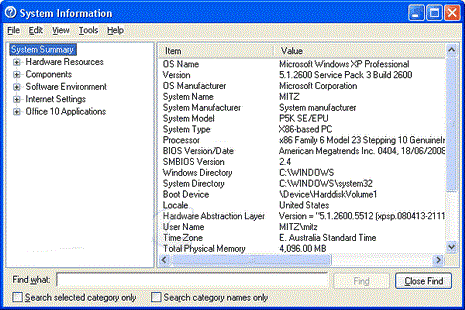
Sometimes you get into a dilemma of choosing some file to install whether it supports 32-Bit or 64-Bit processor version. Before downloading some driver for your hardware or OS, check out your system configuration as below:
2. Choose All programs.
3. Now click accessories, then system tools.
4. Now choose System information.
Thanks for Stopping by Tech75. You can leave a comment to let me know your feedback and can also subscribe to the RSS feeds for regular updates.
In Windows XP:
1. Click on Start.2. Choose All programs.
3. Now click accessories, then system tools.
4. Now choose System information.
If the processor mentioned is x86 then you have a 32 bit processor. If its mentioned x64 Edition Version then this means it is a 64 bit operating system.
For Windows 7:
Now before downloading any software or driver, check the platform and system information for absolute compatibility of software with operating system and processor.
Thanks for Stopping by Tech75. You can leave a comment to let me know your feedback and can also subscribe to the RSS feeds for regular updates.
Check your version of Windows 7
Stay aware of the operating system that is currently running on your system. Windows 7 comes into various releases such as Home premium, Professional and Ultimate editions. Get to know whether which out of these is presently installed on your system.
2. Now a window will open which will display the current version of the Windows 7 running on your PC.
Hence user can get to know the build of the Windows 7 along-with the service pack currently installed and also the name of the person this windows is licensed to.
Thanks for Stopping by Tech75. You can leave a comment to let me know your feedback and can also subscribe to the RSS feeds for regular updates.
Check Windows 7 version
1. Goto Start > Run and type in winver.2. Now a window will open which will display the current version of the Windows 7 running on your PC.
Hence user can get to know the build of the Windows 7 along-with the service pack currently installed and also the name of the person this windows is licensed to.
Thanks for Stopping by Tech75. You can leave a comment to let me know your feedback and can also subscribe to the RSS feeds for regular updates.
Delete temporary internet files in Windows 7
Is your Internet explorer in Windows 7 taking a long time to resolve any address you type in address bar to open any website. You should delete the temporary files which are present in the temporary folder of your computer by using a simple command line.

3. Now the temporary internet files will be deleted from your computer.
By deleting temporary internet files, the internet browsing can be made faster and hence releasing some memory on the hard drive.
Thanks for Stopping by Tech75. You can leave a comment to let me know your feedback and can also subscribe to the RSS feeds for regular updates.
Delete temporary internet files
1. Goto Start > Run and type this command in Run Window and press EnterRunDll32.exe InetCpl.cpl,ClearMyTracksByProcess 8
3. Now the temporary internet files will be deleted from your computer.
By deleting temporary internet files, the internet browsing can be made faster and hence releasing some memory on the hard drive.
Thanks for Stopping by Tech75. You can leave a comment to let me know your feedback and can also subscribe to the RSS feeds for regular updates.
Wednesday, July 21, 2010
Show legacy Recent items menu in Windows 7
Tired of recalling your recently opened files and folders in Windows 7? Recent Items link is disabled in Windows 7 by default. Now you can enable this Windows XP legacy feature in Windows 7. Here is how you can enable it from Start menu properties.
1. Right-click on Start and click Properties and press Customize under Start Menu tab.
2. Scroll down and locate Recent Items and enable the checkbox in front of it and hit OK.
3. Now click on Start and you can find the Recent Items menu displaying all your Recent items.
Thereby, you can bring the legacy Windows XP recent items in Windows 7 start menu by enabling this feature from the Start menu properties. Handy recalling all your recent items with just a click away in Windows 7 start menu. Isn't it? Thanks for Stopping by Tech75. You can leave a comment to let me know your feedback and can also subscribe to the RSS feeds for regular updates.
1. Right-click on Start and click Properties and press Customize under Start Menu tab.
2. Scroll down and locate Recent Items and enable the checkbox in front of it and hit OK.
3. Now click on Start and you can find the Recent Items menu displaying all your Recent items.
Thereby, you can bring the legacy Windows XP recent items in Windows 7 start menu by enabling this feature from the Start menu properties. Handy recalling all your recent items with just a click away in Windows 7 start menu. Isn't it? Thanks for Stopping by Tech75. You can leave a comment to let me know your feedback and can also subscribe to the RSS feeds for regular updates.
Tuesday, July 20, 2010
Rate and Improve you PC Rating
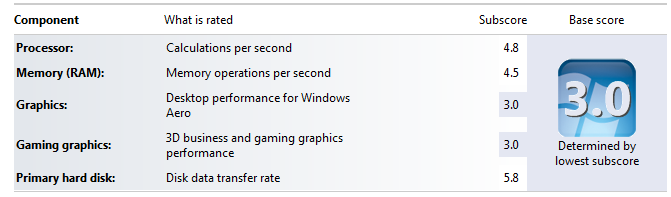
In Windows 7 , there is a built in performance rating tool, with the help of which you can check how system performs. By rating you will get information regarding your PC as it is compared to some standard value.You can also have tips to improve your system performance.
Rate you PC
1. Click on Start > Control Panel
2. Go to Performance Information and Tools
3. Click on Rate this PC.
4. The Windows will test all the basic parameter in your PC and it will rate in range from 1.0 to 7.9.

5. Windows will also suggest some tips to improve the performance.
The Windows will judge your PC and will suggest a score on the scale of 1.0 to 7.9 and will this you can come to know the weak areas in your PC.
Thanks for Stopping by Mobiles Galaxy. You can leave a comment to let me know your feedback and can also subscribe to the RSS feeds for regular updates.
Rate you PC
1. Click on Start > Control Panel
2. Go to Performance Information and Tools
3. Click on Rate this PC.
4. The Windows will test all the basic parameter in your PC and it will rate in range from 1.0 to 7.9.

5. Windows will also suggest some tips to improve the performance.
The Windows will judge your PC and will suggest a score on the scale of 1.0 to 7.9 and will this you can come to know the weak areas in your PC.
Thanks for Stopping by Mobiles Galaxy. You can leave a comment to let me know your feedback and can also subscribe to the RSS feeds for regular updates.
Friday, April 23, 2010
Dell Lightning Mobile with Windows 7
The Dell Lightning is the strongest among the new lot of devices from Dell. It is the only one to run on Windows 7. All the other handsets run on one version of Android or the other.
The Dell Lightning has features to impress every customer with any requirement:
- Windows 7
- 64.4*121.6*14.9mm, Slider with QWERTY Keyboard
- 4.1″ Capacitive Multi-Touch OLED Touchscreen with
WVGAWVGA (800*480) Resolution - 1GHz
Snapdragon ProcessorSnapdragon Processor , 1GBFlash ROMFlash ROM , 512MB DDR, SDRAM, 8GB micro-SD - 5 Megapixel Camera with Autofocus
Wi-Fi 802.11Wi-Fi 802.11 b/g/n,Bluetooth 2.1Bluetooth 2.1 , USB 2.0 HighSpeed- DivX Support, 1400mAH Battery,
Proximity SensorProximity Sensor ,Light SensorLight Sensor , micro-USB
The phone will not have Flash support initially but Microsoft promises support very soon. it is set to release during the fourth quarter of 2011.
Subscribe to:
Posts (Atom)
Categories
- Amazon (1)
- Android (4)
- Apple (9)
- Attachments (1)
- Barnes n Noble (1)
- Blackberry (5)
- Bookmarks (2)
- books (1)
- Chat (2)
- Dell (5)
- Dictionary (1)
- Drag-and-drop (1)
- e-book reader (3)
- Edit (4)
- Email (2)
- Extensions (5)
- Facebook (12)
- File compression (1)
- Firefox (2)
- Gadgets (52)
- Gmail (11)
- Google (35)
- Google Chrome (8)
- Google Labs (2)
- Hardware (1)
- Hauwei (1)
- Hewlett Packard (3)
- Hotmail (1)
- HTC (5)
- HTML5 (1)
- Interesting (13)
- internet (36)
- Internet Explorer (10)
- iPhone 5 (1)
- Keyboard (7)
- Lenovo (2)
- LG (2)
- Live Video (2)
- Login (3)
- mail (2)
- Micromax (2)
- Microsoft Word (1)
- mobile world (78)
- Motorola (8)
- Mozilla Firefox (7)
- Nokia (20)
- Olive (2)
- Opera (1)
- Ovi (2)
- Password (1)
- PC (32)
- Safari (1)
- Samsung (5)
- Security (4)
- Servers (2)
- Sharp (1)
- Social Application (3)
- Social Gaming (1)
- Software (11)
- Softwares (2)
- Sony Ericsson (4)
- Symbian (3)
- Symbian Anna (1)
- Tablet (4)
- TAG heuer (2)
- Templates (1)
- Themes (3)
- TIPS (104)
- Tools (16)
- TouchScreen (23)
- Tricks (61)
- Twitter (2)
- Video (3)
- Web (2)
- Web browser (7)
- Windows 7 (26)
- Windows XP (3)
- yahoo (1)
- youtube (4)